
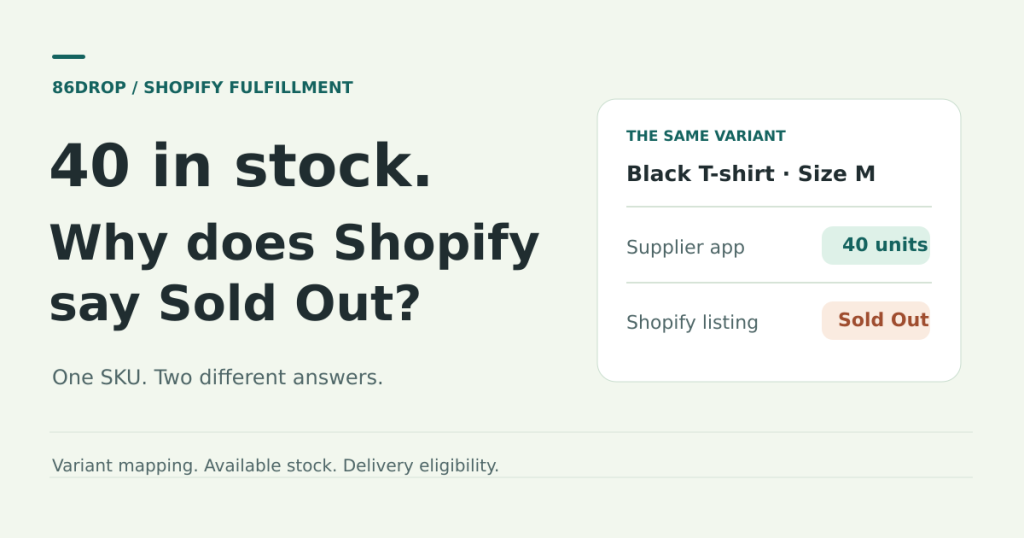
You paid for the click. The shopper picks a black T-shirt in size M and sees Sold out. Your supplier app shows 40 units. Before you change the count, find out which warehouse has the shirt and whether it can ship to that shopper.
Start with the cart that failed: one black T-shirt, size M, one unit. Use the buyer’s market and a test postcode. Take note of where it breaks. A Sold out button points you toward the variant and its sellable stock. If the item goes into the cart and checkout can’t find a rate, start with shipping. If the product page itself is missing, check where it’s published.
Pull up the size and color the shopper picked
Open size M in both Shopify and the fulfillment app. Check the Shopify variant ID, your SKU, and the supplier’s item or variant ID. If size L sells and size M doesn’t, put those two mappings side by side. It’s an easy way to spot a size mapped to the wrong supplier item.
If the mapping looks right, ask the app team what quantity it last sent for size M and which Shopify location received it. Then open the variant’s inventory adjustment history. The Created by column shows which staff member, app, or sales channel made a recorded change. Compare the change, location, and time with the app’s last export. That gives support something concrete to trace, and it saves you from typing in a quantity that the next update might overwrite. Shopify: Inventory adjustment history
Find out how many units the warehouse can pick
Shopify’s inventory page has two numbers that are easy to mix up. On hand is what sits at the location, including units already committed to orders or set aside as unavailable. Available is what the location can still sell. If there are 40 on hand and eight committed, there are 32 available, assuming nothing is on hold. Incoming stock goes in a separate bucket until it’s received and made available. Shopify: Inventory states
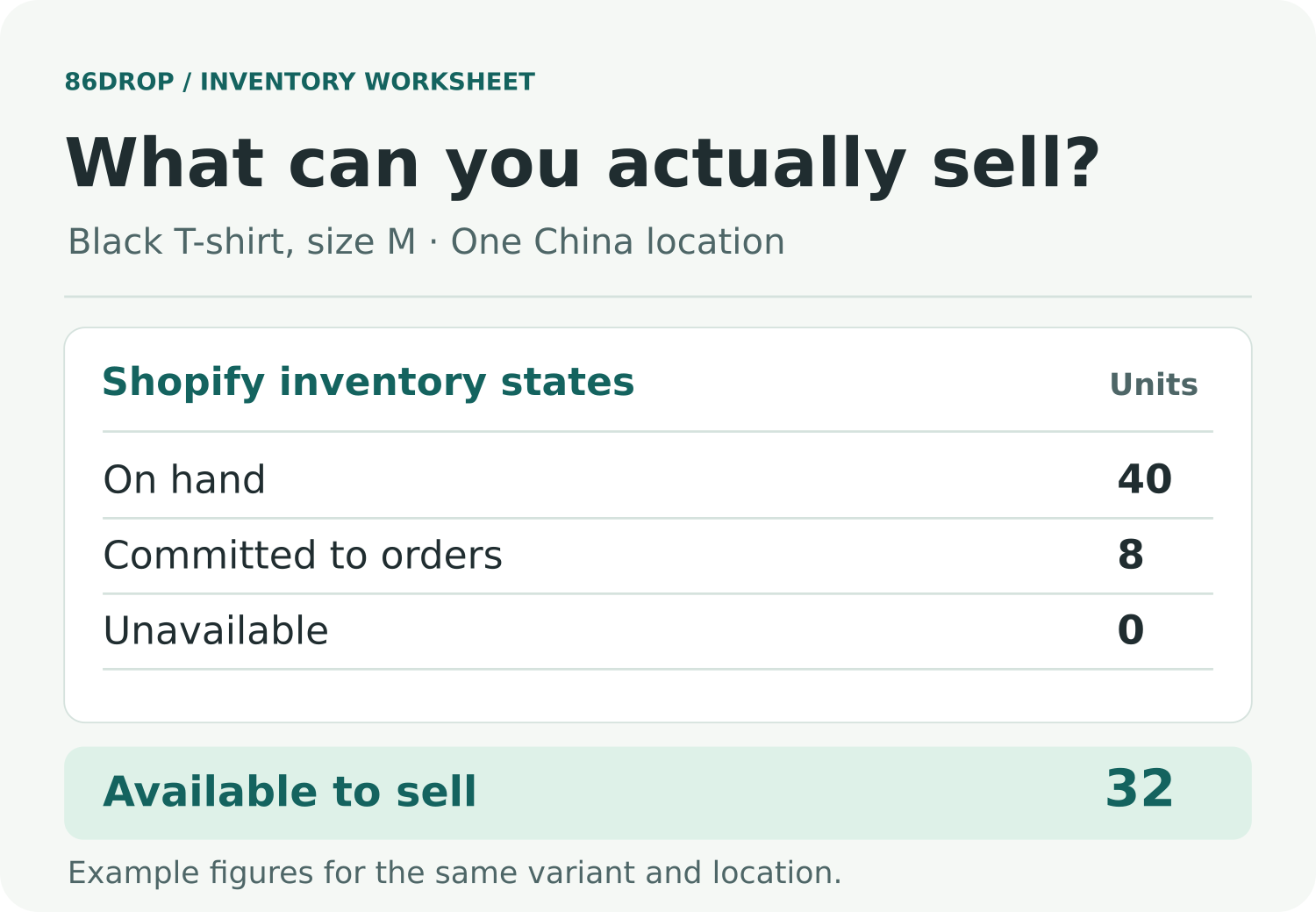
Check the row for the warehouse you expect to ship from. A dash in Available can mean the variant is inactive there. A numeric zero is a reason to check commitments, holds, and receipts with the warehouse team. Also make sure the location is set to fulfill online orders. It’s possible to have units at your own location and at an app-managed warehouse, and only one of those locations may be set up to ship this order. Shopify: Multi-managed inventory · Shopify: Location setup
If the count is right, check where you can ship it
This is where a stock check often turns into a shipping check. Open the variant’s shipping profile. Find the group for its stocked location, check the buyer’s shipping zone, and see which rate applies to that cart’s weight and value. An app-managed warehouse may have stock and still appear under Not fulfilling from in that profile. Shopify: Manage locations in shipping profiles
There’s a useful example in the Shopify Community. A thread on products showing Sold Out despite available inventory had 22,329 views and 33 replies when we checked on November 16, 2026. In a separate thread, a merchant reported that old products sold normally while new ones landed in the General shipping profile, where that store had no rates. If an older product works, compare its profile with the new one before you change stock.
Shopify’s fulfillable inventory rules can show a product as sold out when the stocked locations don’t ship to the selected market. Some older stores have a setting that changes what the product page shows, so check what actually happens at checkout. If the product page itself is missing, check its Online Store publishing status and the market’s catalog first. Shopify: Fulfillable inventory · Shipping-rate troubleshooting · Market catalogs
Change the destination and run the same cart again
Put size M in a fresh cart. Say the 32 available units sit at one China location. Canada has a shipping rate from that location; the U.S. test postcode doesn’t. Try both with one unit and stop before payment. If Canada works, take the U.S. postcode and the rate settings to whoever manages the shipping profile. You’ve isolated the part of the setup worth fixing.
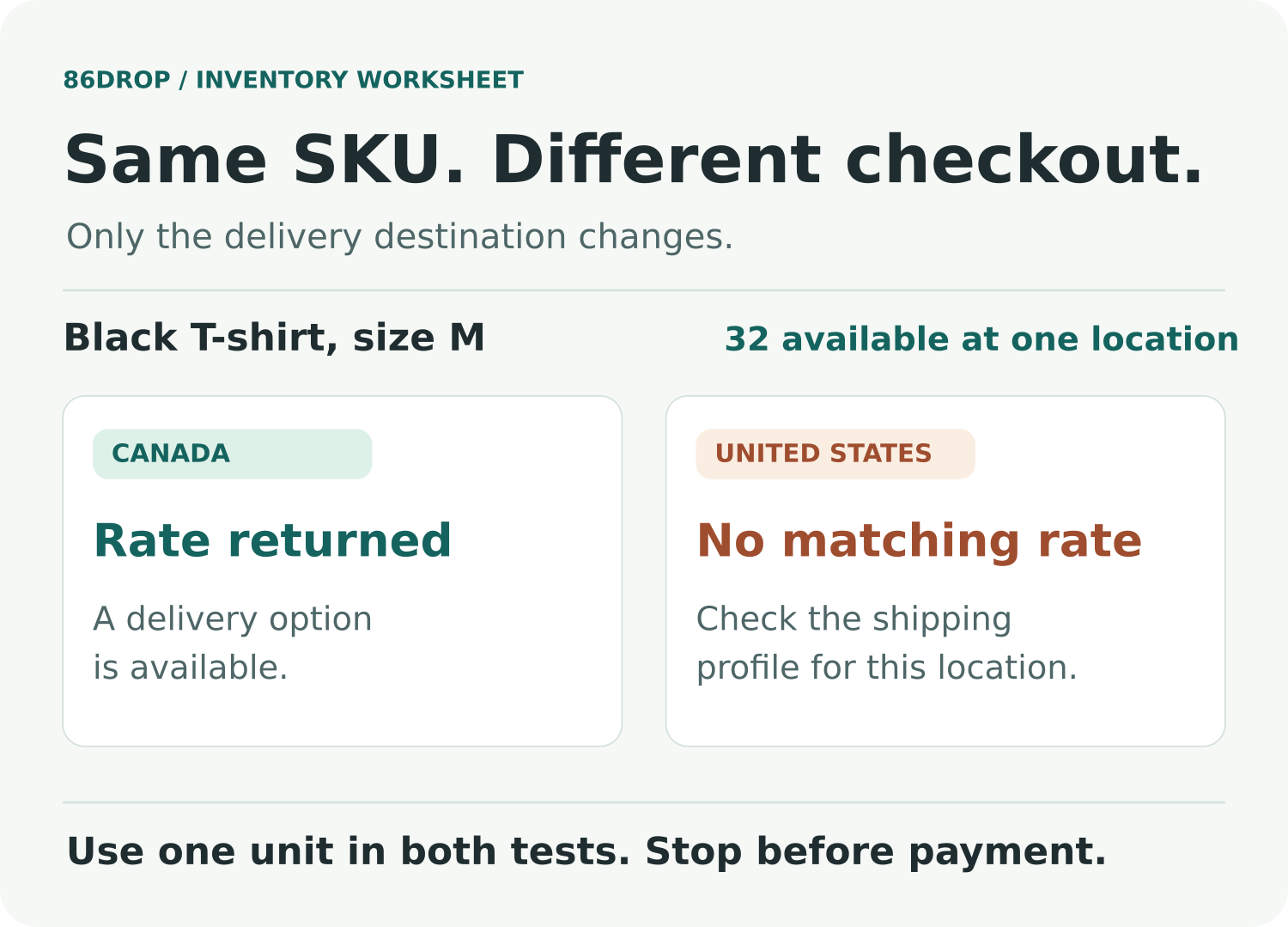
Confirm the warehouse serves that U.S. destination before adding a rate. Then rerun the original cart. When a rate is added, try one address that should still be outside your delivery area too. That catches a fix that went wider than you intended.
Send the next team enough to act
| What you see | Who to ask | What to send |
|---|---|---|
| The supplier app shows stock; the mapped Shopify variant shows zero. | App or integration support | SKU, both variant IDs, the expected location, and the time of the last update. |
| On hand is positive; Available is zero. | Warehouse inventory team | On hand, Available, Committed, and Unavailable for that location. Include any pending receipt or hold. |
| The warehouse has Available stock; checkout fails for one destination. | Store operations | Variant, location, shipping profile, market, and a test postcode. |
| Checkout works for the same variant and destination; the product page still says Sold out. | Storefront or theme support | Product URL, selected variant, market, and the result from a clean session. |
If you’re setting up Shopify fulfillment from China, let’s start with one SKU. Tell us where it should ship from and where your customers are. See how we connect your store to 86DROP.