
CUSTOMER REFERENCE
Use this reference for account access, store connection, order handling, branding requests and preparing an after-sales case.
New service inquiry — Start a conversation through our Request a Quote form. You do not need an ERP account to send an inquiry.
Existing customer — Use your existing account access to open the 86DROP customer system.
Before an order is confirmed — Review the written scope, charges, and applicable terms for your specific request.
Screenshots are existing tutorial interface examples, cropped with account and listing details redacted. Current screens and requirements may differ. Select a screenshot to open the full-size example.
01 / ACCOUNT
Creating Your 86DROP Account
This account setup reference is for customers who have been directed to use the 86DROP customer system. You can send a new service inquiry through the website without creating an ERP account. The customer system is separate from this marketing website.
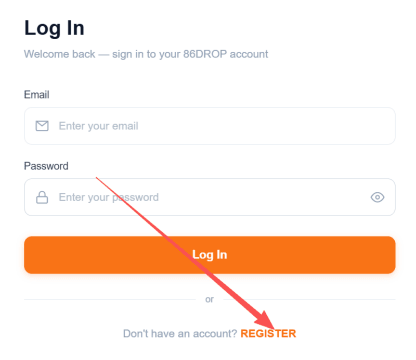
- Open the 86DROP customer system in a new tab. To create an account, use the registration option on the sign-in screen.
- On the sign-in screen, select REGISTER if registration is available for your account. If you do not see this option, use the access instructions provided for your account.
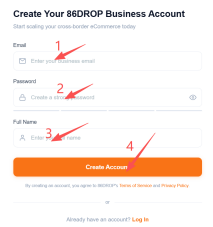
- Enter your own email address, create a private password, and enter the name requested by the form. Select Create Account to continue. Keep your password private and enter it only on the customer system’s sign-in page.
02 / STORE CONNECTION
Connect Your Store to the Customer System
The archived interface reference below describes a Shopify connection flow. Follow it only when Shopify connection has been arranged for your account and the same options appear in the customer system. Review the requested access before approving an app. If the interface or permissions differ, pause and confirm the instructions through your existing account support channel.
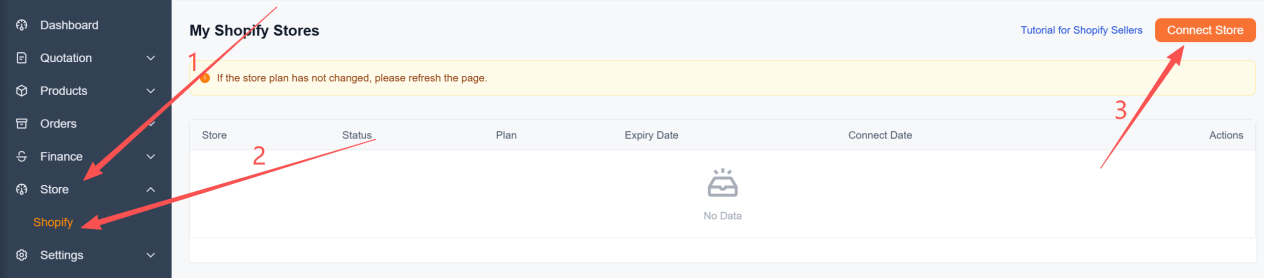
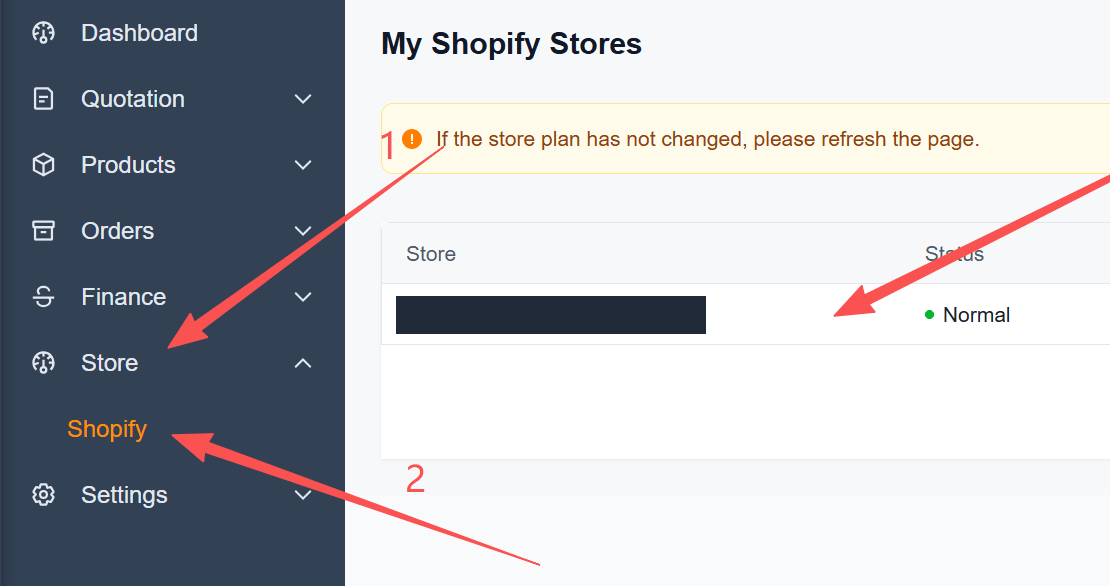
- In the customer system, open Store in the left navigation.
- Select Shopify.
- Select Connect Store if this option is available for your account.
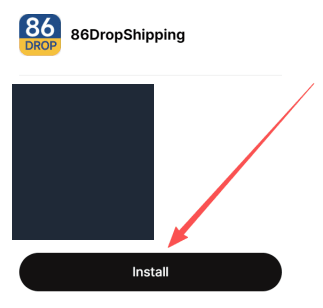
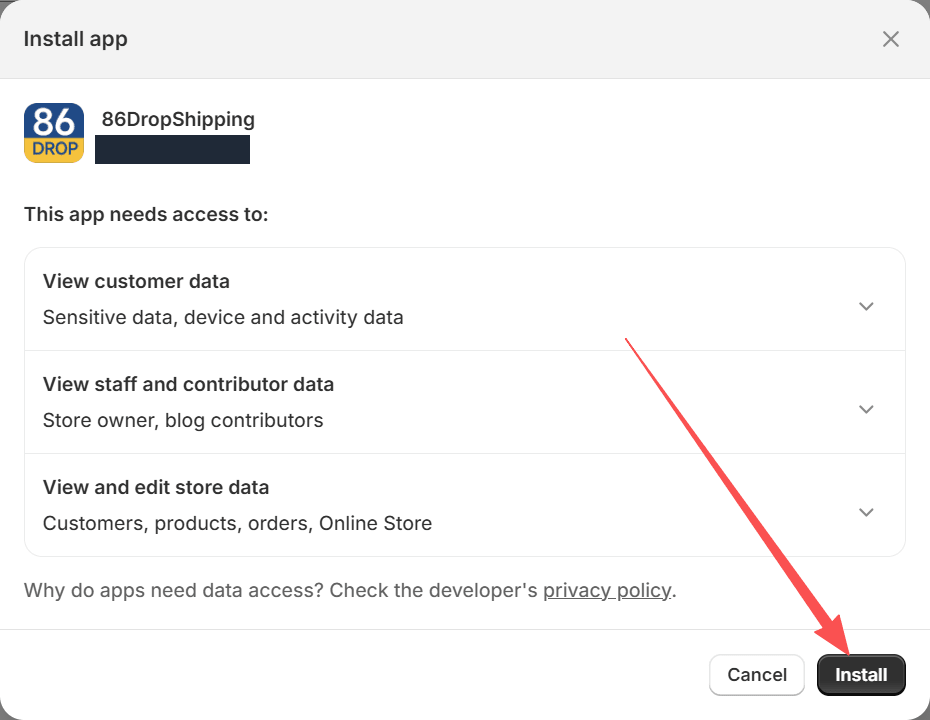
- If the flow opens the Shopify App Store, check that the app name and publisher match the instructions supplied for your account before selecting Install.
- Read the access request shown in Shopify. Continue only if the requested access matches the connection you intend to authorize; select Install to confirm.
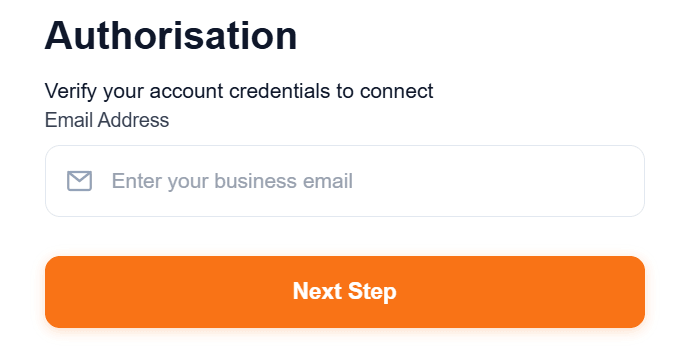
- On the authorization screen, enter the email address associated with your customer-system account and select Next Step.
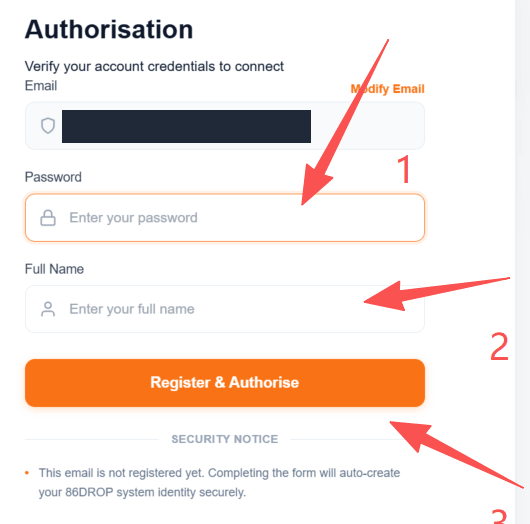
- Complete the authorization using your account credentials on the official sign-in screen. Do not send your password to support or enter it on an unrelated page. Select Register & Authorise only when the screen and requested action match your account instructions.
- Return to Store → Shopify and check the connection status displayed for your store. The archived interface labels the status Normal; current status wording may differ.
After Shopify authorization and product mapping, orders and tracking numbers sync automatically. Follow real-time order and shipment updates in your 86DROP workspace. You can still request a quote without an account or a connected store.
03 / WORKFLOW
Order Workflow Overview
These stages outline the information and decisions involved in sourcing and fulfillment. Follow the written scope, system instructions and responsibilities confirmed for your request.
- Quotation — Send your name and email through Request a Quote. Review the written response, including the items and charges it covers, before deciding whether to proceed. Any quote is specific to the request and the terms supplied with it.
- Order review — If store connection and order access have been arranged for your account, review the order details shown in the customer system. Check product options, quantities, and shipping information against your store record.
- Confirm fulfillment instructions — Confirm the products, quantities, destination, and scope through the process described in your written offer or account instructions. Ask about any discrepancy before authorizing work.
- Payment — Use the payment method and timing stated in the invoice or written terms for the specific request. Keep the confirmation with your order records.
- Quality Control — Where sourcing or inspection is included in the confirmed scope, provide the required specifications and review any updates or evidence supplied for that request.
- Shipping — When shipment is arranged, review the destination, selected shipping option, and available tracking information. Delivery timing and availability depend on the confirmed route and shipment details.
04 / PROCESSING
Sourcing, Processing & Shipping
Sourcing & Product Information
Share a product link or specification, including the requested options and quantity, so sourcing feasibility can be reviewed. Availability depends on the product and supplier information available for the request. If the request involves more than one supplier, confirm how sourcing, consolidation, and related charges will be handled before proceeding.
Agree the requested on-site or warehouse checks and packing requirements before work begins. Warehouse inspection photos and videos are uploaded to your 86DROP workspace. Review the evidence with your consultant and resolve visible discrepancies before fulfillment.
Order Processing & Shipping Reference
| Stage | What to check |
|---|---|
| Order processing | Check the schedule and cutoff information provided for your account or request before planning an order. |
| Billing and payment | Review the invoice and the payment method, due date, and included charges stated for the specific request. |
| Arrival for processing | Confirm the expected next update for the sourcing or inbound stage associated with your request. Timing depends on the product and route. |
| Inspection and packing | Check which inspection or packing steps are included in the written scope and how completion will be reported. |
| Delivery to recipient | Check the confirmed destination, shipping option, and tracking details. Transit time varies by route and shipment. |
| Destination availability | Confirm that the requested product and destination can be served before approving the quote or shipment. |
05 / BRAND
Product Branding and Custom Packaging
For product logos, thank-you cards, custom boxes or packaging bags, send your artwork or specification, dimensions, quantity and requested date. Availability and production requirements depend on the item and the confirmed scope.
- Thank-you cards
- Custom packaging boxes and bags
- Product logo customization
Before approving production, review the written specification, sample requirements, applicable charges, and estimated schedule for your request. Confirm who supplies the artwork and which version is approved for production.
06 / AFTER-SALES
Returns, Refunds & Issue Reporting
If an order has a problem, collect the order reference and a clear description of what happened. The steps below help prepare a case for review; they do not determine whether a refund, replacement, or return is available. The applicable written order terms and relevant legal requirements govern each case.
Damaged, Incorrect, or Possibly Lost
Record the order reference, the item and quantity involved, and the date the issue was noticed. Keep the outer packaging and shipping label when available. Take clear photos or video of the item and packaging, and report the issue through the support route supplied for your existing account. For a shipment with no delivery scan, include the latest tracking details. Wait for the case review and written instructions before arranging a return or other remedy.
Unwanted or Change of Mind
Before sending an item back, review the terms that apply to the order and request written return instructions for the specific case. Do not ship an item to an address that has not been confirmed for that return. Return eligibility, shipping responsibility, and any refund depend on the applicable order terms and relevant law.
Before Sending a Return
- Check the return period and eligibility stated in the terms for the specific order. The request window can depend on the product, destination, and applicable terms; obtain instructions before arranging shipment.
- Confirm the return address, shipping method, customs documentation, and responsibility for any return charges in writing before dispatch. Keep the tracking receipt and shipment record.
Keep your order reference, supporting evidence, and written case instructions together. Do not include passwords or payment-card details in a support request.
07 / NEXT STEPS
Account Support and New Requests
Need help with an existing account? Sign in to the 86DROP customer system and follow the support instructions provided for your account. If you cannot access the account, use the support contact supplied in your customer onboarding or order documents.
Planning a new request? Use the Request a Quote form to send your name and email. Prepare product references, quantities and destinations for our follow-up. If you are planning around a promotion or requested date, include it so feasibility can be discussed.